
SURPG settings, sound and music
Use Options to adjust sound, transformation animations and display settings. Open Music separately to search for tracks and control playback.
Open Menu > Home > Options for general settings, or Home > Music for the music player. Change your transformation voice in Options, turn off Gameplay > Quick Transform for long super-form animations, and enable Show NPC Name Indicators to identify quest givers. Hyper always uses its long transformation animation.
Options and menu navigation
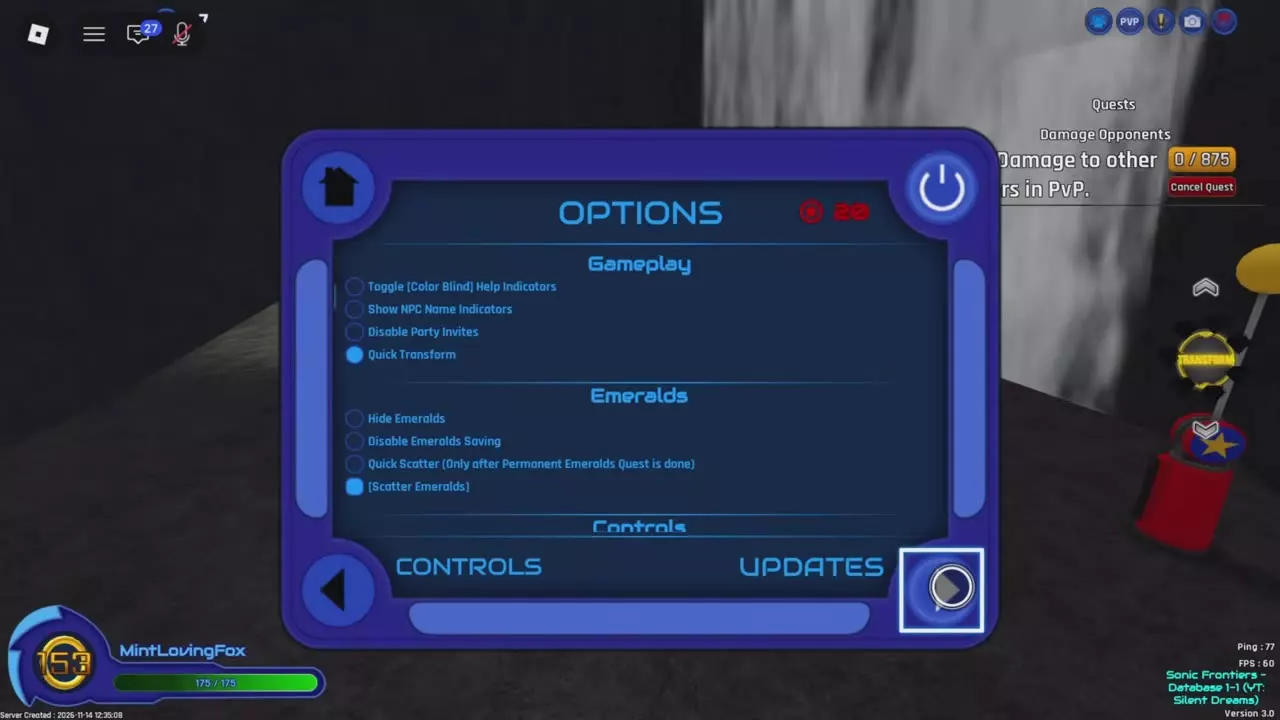
Open Menu > Home > Options. Scroll inside the options list to reach lower categories, including Controls. Use the Home icon to return to the menu directory and the bottom arrows to move between pages. The upper-right power icon closes the menu panel; it does not hide the entire interface.
| Home page | Purpose |
|---|---|
| Guide | Game guidance |
| Controls | Action inputs |
| Options | General settings |
| Updates | Update information |
| Character | Appearance and animations |
| Music | Track search and playback |
| Store | Gamepasses |
| Credits | Creator credits |
| Keybinds | Input assignments |
Within Options, Gameplay includes Toggle (Color Blind) Help Indicators, Show NPC Name Indicators, Disable Party Invites and Quick Transform. Emerald settings occupy their own category. The Controls category includes Rise Speed, Descend Speed and a legacy console mapping option.
Music tracks and playback
- Open Menu > Home > Music.
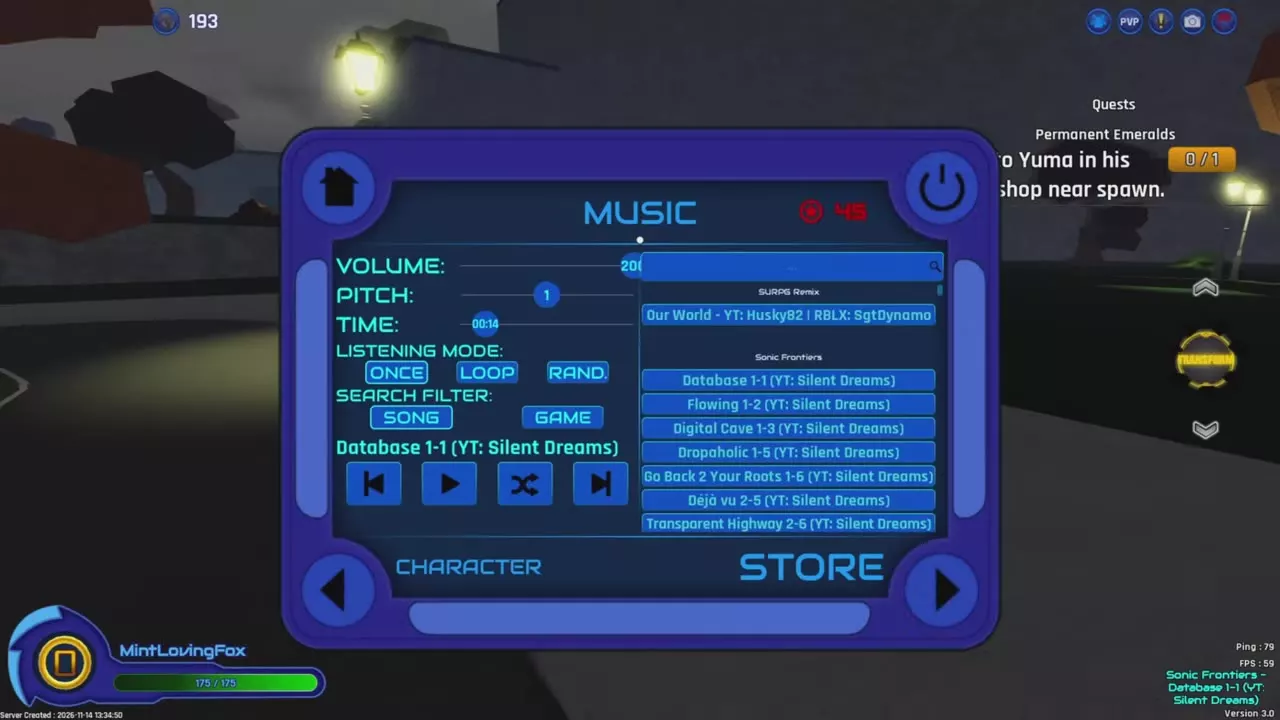
- Under Search Filter, select Song to search by track name or Game to search by game.
- Enter your search in the search box and choose a track from the list.
- Use the previous-track, play, random and next-track buttons to control playback.
Use Volume to adjust music loudness, Pitch to change its pitch, and Time to move to a different playback position.
Choose a listening mode for the result you want:
- Once: play the track once.
- Loop: repeat the track.
- Rand.: use random playback.
The track directory includes creator credits so you can identify the version you want to hear.
Directory
Music menu tracks and creator credits.
8 objects
|
|
Husky82 | SgtDynamo |
|---|---|---|
|
A music track available in the Music menu. |
||
|
|
Silent Dreams | — |
|
A music track available in the Music menu. |
||
|
|
Silent Dreams | — |
|
A music track available in the Music menu. |
||
|
|
Silent Dreams | — |
|
A music track available in the Music menu. |
||
|
|
Silent Dreams | — |
|
A music track available in the Music menu. |
||
|
|
Silent Dreams | — |
|
A music track available in the Music menu. |
||
|
|
Silent Dreams | — |
|
A music track available in the Music menu. |
||
|
|
Silent Dreams | — |
|
A music track available in the Music menu. |
||
Transformation voice and sound volume
At the initial Set Transformation SFX Voice prompt, choose Male or Female. To change that choice later, open Menu > Options and use the transformation voice setting.
Adjust ambience and SFX separately: ambience controls environmental sounds, while SFX controls sound effects. For song volume, use the Volume control in the Music player.
Quick Transform
To watch the long transformation animation for the existing super forms:
- Open Menu > Options > Gameplay.
- Find Quick Transform. If its indicator is lit, click it to turn the setting off. The indicator becomes hollow.
- Close the menu and activate the form you want to use.
Hyper always uses its long transformation animation. Quick Transform cannot shorten it.
NPC names and interface display
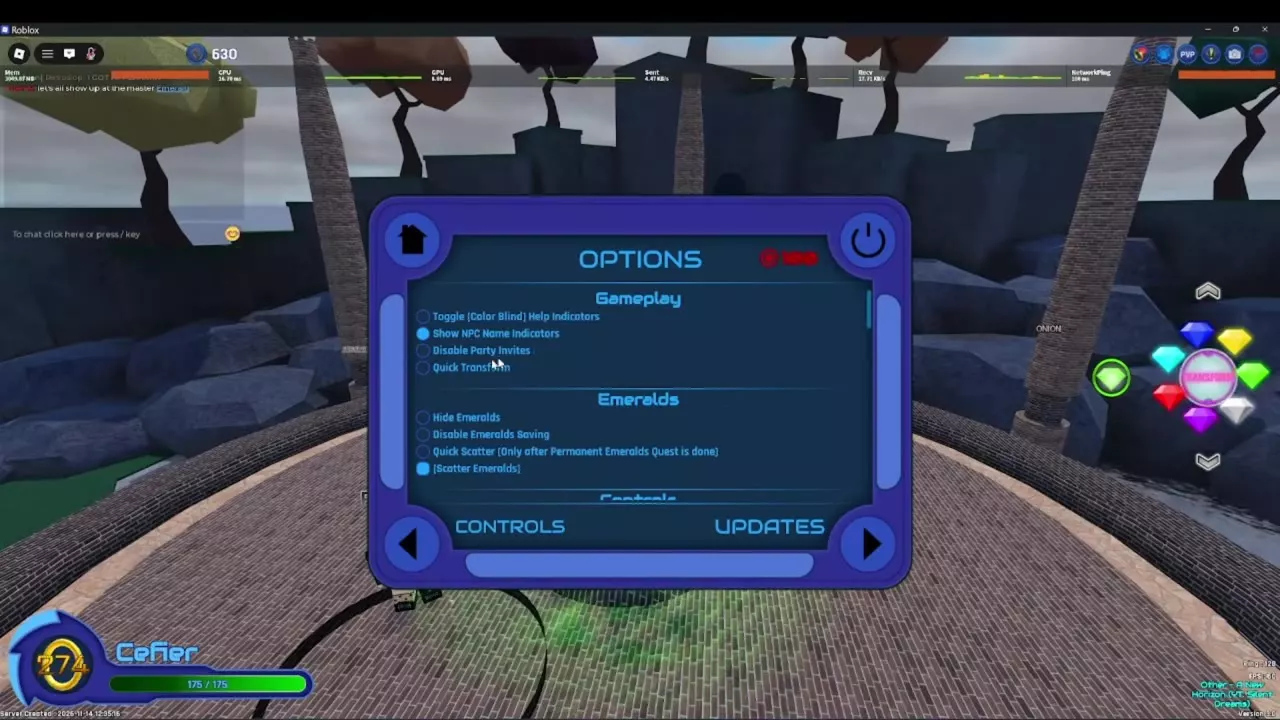
Open Menu > Options > Gameplay and enable Show NPC Name Indicators to display NPC names. This helps you recognize quest givers while exploring.
Use Hide UI for screenshots or character and skill displays without interface overlays. Your character and effects such as Sonic Wind remain visible.
For smaller display changes, use Hide Chat Prefix to hide chat prefixes, or disable the music-name display to remove the on-screen track identification.
Rendering and Ring animation
Death Egz visibility
If Death Egz or its location icon is missing from view, raise graphics quality and turn off Low Quality Rendering in Options. For destinations and exploration landmarks, use the map guide.
World-space interfaces, overhead indicators and text labels have a maximum render distance. A distant label being absent does not mean its destination has disappeared. The active tree for the Double Rings quest has extra indicators visible from far away even at low graphics quality in servers with the November 28, 2025 indicator changes.
Animated Rings
Enable Disable Ring Animation to stop Ring animations. This also applies to Rings in the Freefall Hyper Stage in new servers with the November 15, 2026 Hyper Stage changes.
Controls, Emerald settings and customization
- Inputs and bindings: use Home > Controls to read action inputs and Home > Keybinds to change assignments. See controls and keybinds for device mappings and binding conflicts.
- Emeralds: Menu > Options > Emeralds contains Hide Emeralds, Disable Emeralds Saving, Quick Scatter and Scatter Emeralds. Hiding Emeralds changes their display; disabling saving changes their saving behavior; scattering sends them away. Quick Scatter requires completion of the Permanent Emeralds Quest. See Emerald saving, scattering and recall for those settings and recovery.
- Quest replay: Options > Wipe All Quest Progress clears all quest progression. Replaying Storm The Lair removes Hyper. Read quest replay and progress clearing before resetting progress.
- Appearance: use Home > Character for appearance and animation configuration. See character customization and animation previews for Aura Color, animation packs, form colors, accessories and titles.