
SURPG character customization and animation previews
Use the Character menu to customize aura colors, preview movement animations, toggle cosmetic accessories and find your titles.
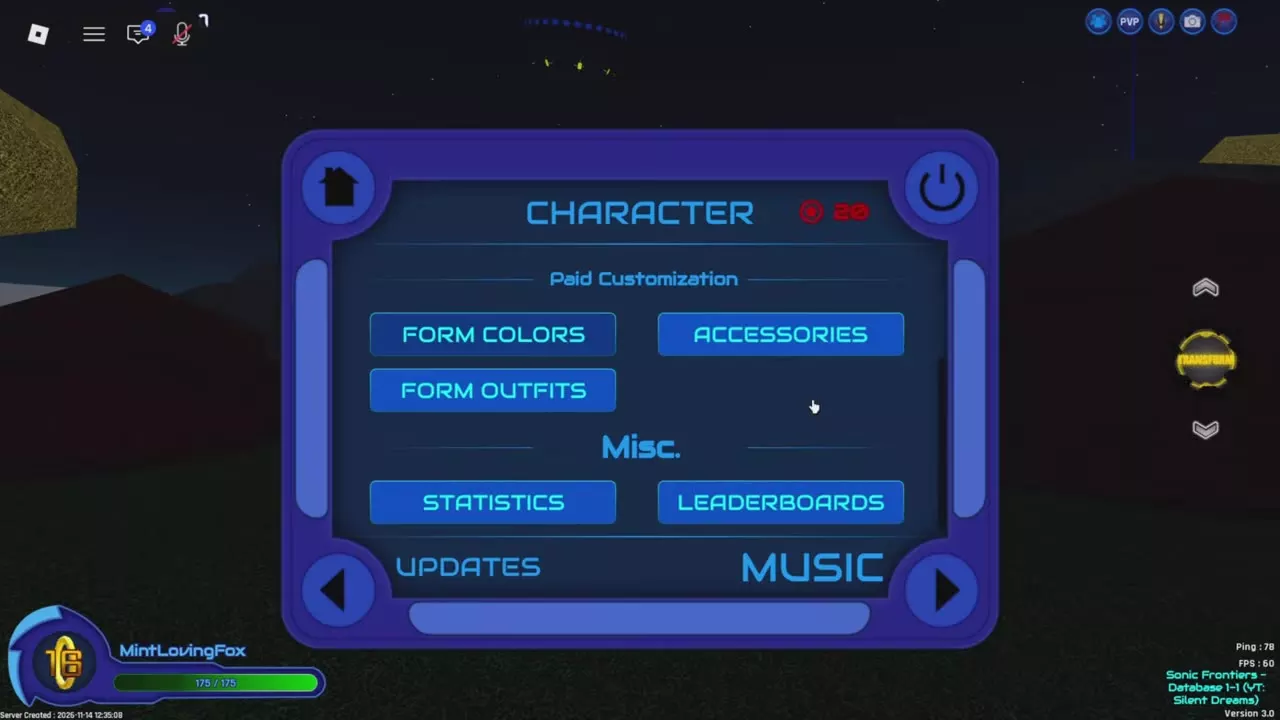
Press M on PC or open Menu, then select Character. Customization contains Aura Color, Animations and Titles. Paid Customization contains Form Colors, Accessories and Form Outfits; scroll down to reach Form Outfits. Use Aura Color for HEX colors and saved presets, Animations for action previews, and Accessories to toggle unlocked cosmetics.
Character menu sections
Press M on PC or open Menu, then select Character from Home.
| Section | Options |
|---|---|
| Customization | Aura Color, Animations, Titles |
| Paid Customization | Form Colors, Accessories, Form Outfits |
| Misc. | Statistics, Leaderboards |
Scroll down within Character to reach Form Outfits.
Animation packs and form color presets
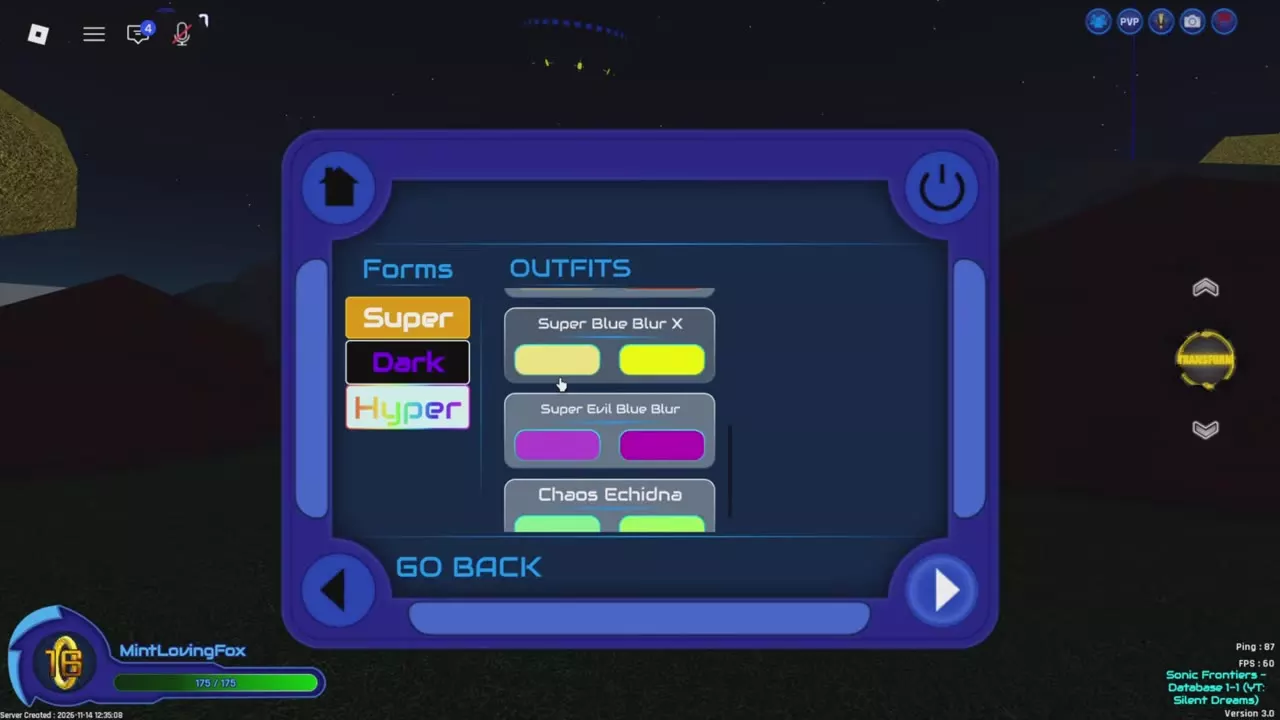
Choose an animation pack to compare character poses and movement in the preview. Choose a form color preset for a premade form aura palette; using these presets requires Form Colors.
Compare packs using the same action and form so the preview answers a specific question, such as which running pose you prefer. These named color sets customize form auras; they do not unlock separate transformations.
Directory
Animation packs and named form aura color presets.
9 objects
|
|
— | Light yellow / bright yellow |
|---|---|---|
|
A Form Colors preset with light-yellow and bright-yellow color options.
|
||
|
|
— | Purple / magenta |
|
A Form Colors preset with purple and magenta color options.
|
||
|
|
— | Light green / bright green |
|
A Form Colors preset with light-green and bright-green color options.
|
||
|
|
Character > Animations | — |
|
An animation pack in the Character menu's Animations list. |
||
|
|
Character > Animations | — |
|
An animation pack in the Character menu's Animations list. |
||
|
|
Character > Animations | — |
|
An animation pack in the Character menu's Animations list. |
||
|
|
Character > Animations | — |
|
An animation pack in the Character menu's Animations list. |
||
|
|
Character > Animations | — |
|
An animation pack in the Character menu's Animations list. |
||
|
|
Character > Animations | — |
|
An animation pack in the Character menu's Animations list. |
||
Aura Color and Form Colors
Enter a custom aura color
- Open Menu > Character > Aura Color.
- Enter your chosen color in the HEX input.
- Use the preset-saving feature to keep a reusable color preset.
Browse premade form palettes
Form Colors is a separate paid feature for premade form aura color sets.
- Open Menu > Character > Form Colors.
- Browse the Super, Dark and Hyper categories.
- Select a color option from a named preset.
If Form Colors is not unlocked, selecting a color option opens its purchase prompt. Choose this feature when you want a ready-made form palette rather than entering a custom HEX color.
Preview animation packs
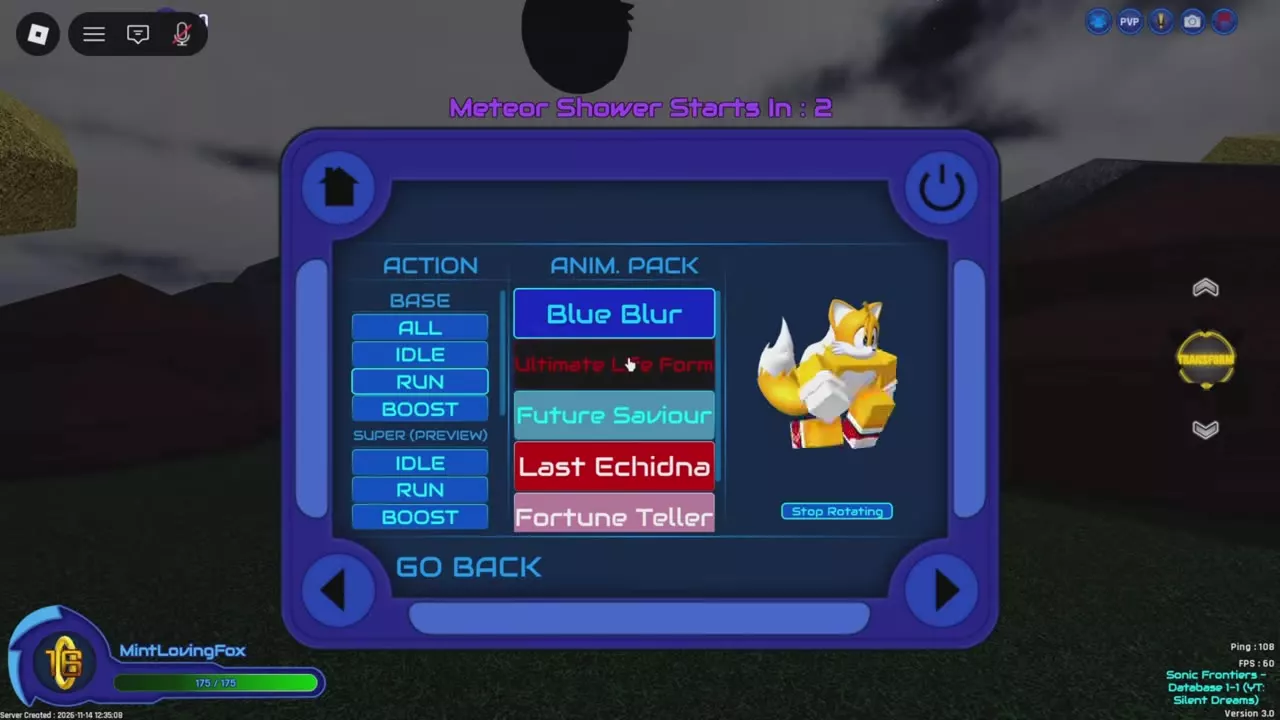
- Open Menu > Character > Animations.
- Select a pack in the Anim. Pack list.
- Select an action in the Action column to change the character preview.
- Scroll down the action list to reach the other form groups.
- Select Stop Rotating to stop the preview from turning.
| Preview group | Actions |
|---|---|
| Base | All, Idle, Run, Boost |
| Super | Idle, Run, Boost |
| Dark | Idle, Run, Boost |
| Hyper | Idle, Run, Boost |
Use Idle to inspect a standing pose, Run to compare running animations and Boost to compare boosting poses. Keep the action selected while browsing packs to make their differences easier to compare.
Toggle accessories
Unlock the accessory you want to use, then open Menu > Character > Accessories and toggle it on or off. All three accessories are cosmetic only and provide no combat upgrades.
- Gloves of Disaster: wear the Guardian Echidna's gloves and activate a fiery aura around them. Choose these for a flame effect focused on your hands.
- Flame of Judgement: display a flame that grows according to how many Rings you collect. Choose it for an effect that changes as you collect Rings, or pair it with Hyper Form for a flame-accented look.
- Inhibitor Rings: wear rings styled after the Ultimate Life Form. Taking them off grants an aura. Choose these for the ring accessories and their removal aura.
Flame of Judgement and Inhibitor Rings become invisible during Spin Dash, Homing Barrage, Heavy Stomp and Homing Attack.
Boss titles and the Titles menu
Defeat Egzman on Easy, Medium or Hard to earn boss title rewards. Return to Death Egz to challenge the boss again.
To find the Titles menu, open Menu > Home > Character, then select Titles in the Customization section.
Use the Egzman boss guide for the fight route, difficulty choices and attacks to handle.
Saved outfits and gamepasses
- Transformation clothing: Form Outfits uses saved Roblox outfits during transformations and supports separate assignments for Super and Dark. Follow the Form Outfits setup guide to save outfits, grant item access, assign clothing and remove an assignment with None.
- Cosmetic purchases: compare gamepass prices and features to choose between premade form colors, transformation outfits and accessories.
- Transformation sequences: use Quick Transform settings to control the transformation animation setting.